0. Overview (Students)
This guide is for students using the AristAI eBook Platform. It matches the real flow you will see on-screen: create an account, log in, verify your email, set up two-factor authentication (2FA), choose your role, then activate/purchase and read your book.
1. Create Account & Log In
1.1 Create Account
- Go to ebook.aristai.io.
- Click Create Account.
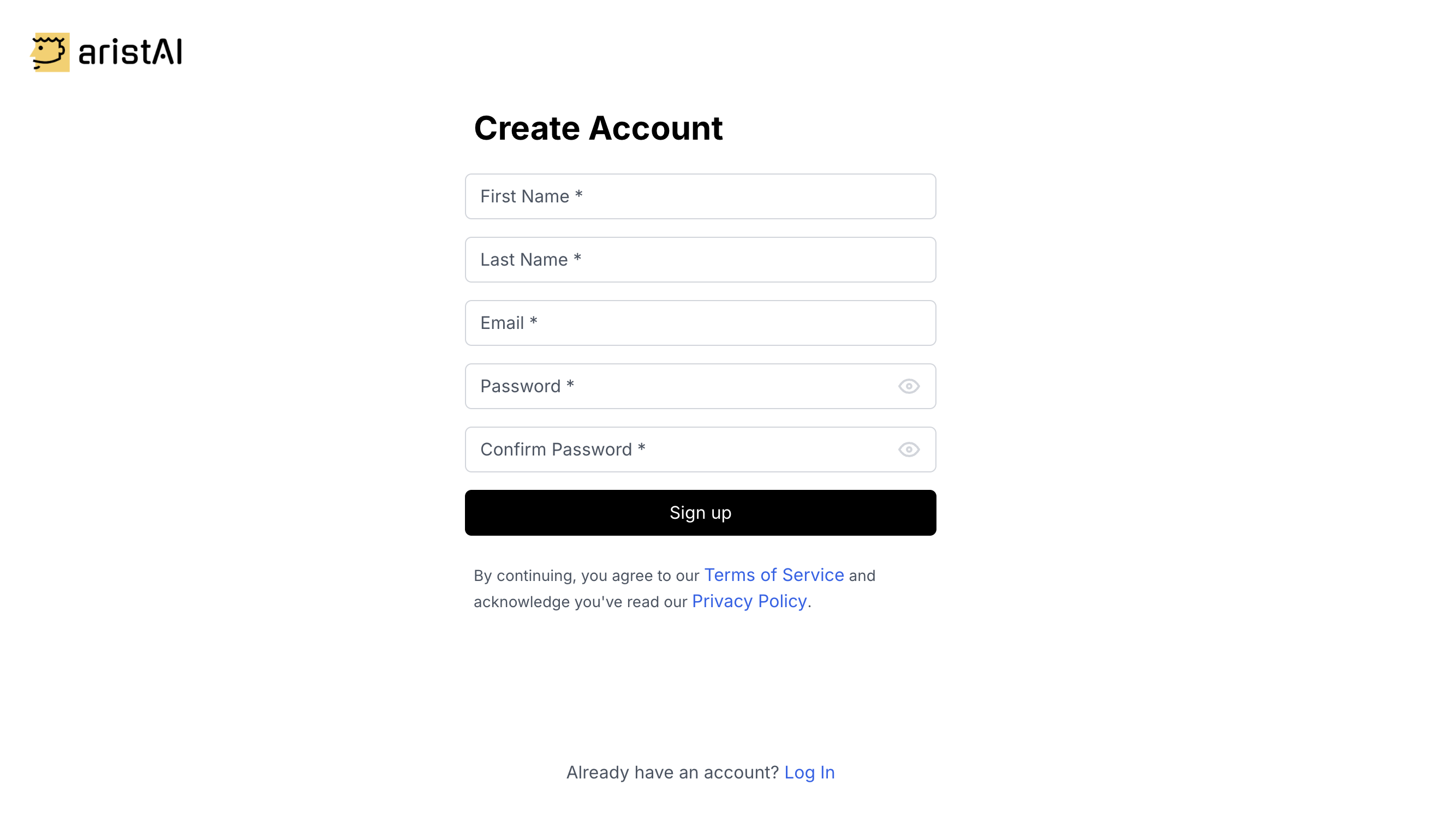
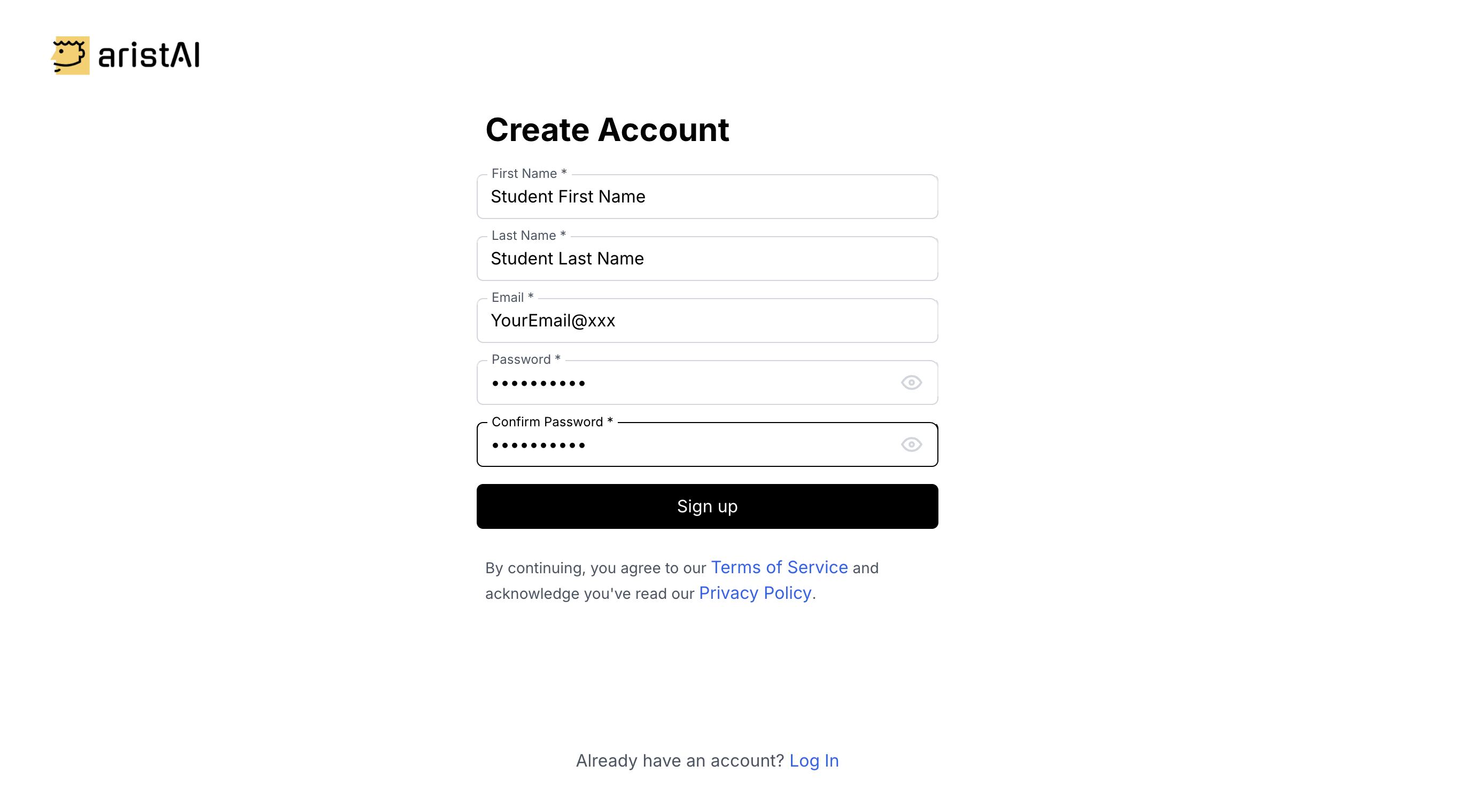
- Fill in First Name, Last Name, Email, Password, and Confirm Password.
- Click Sign up.
1.2 Log In
- Go to the Log In page.
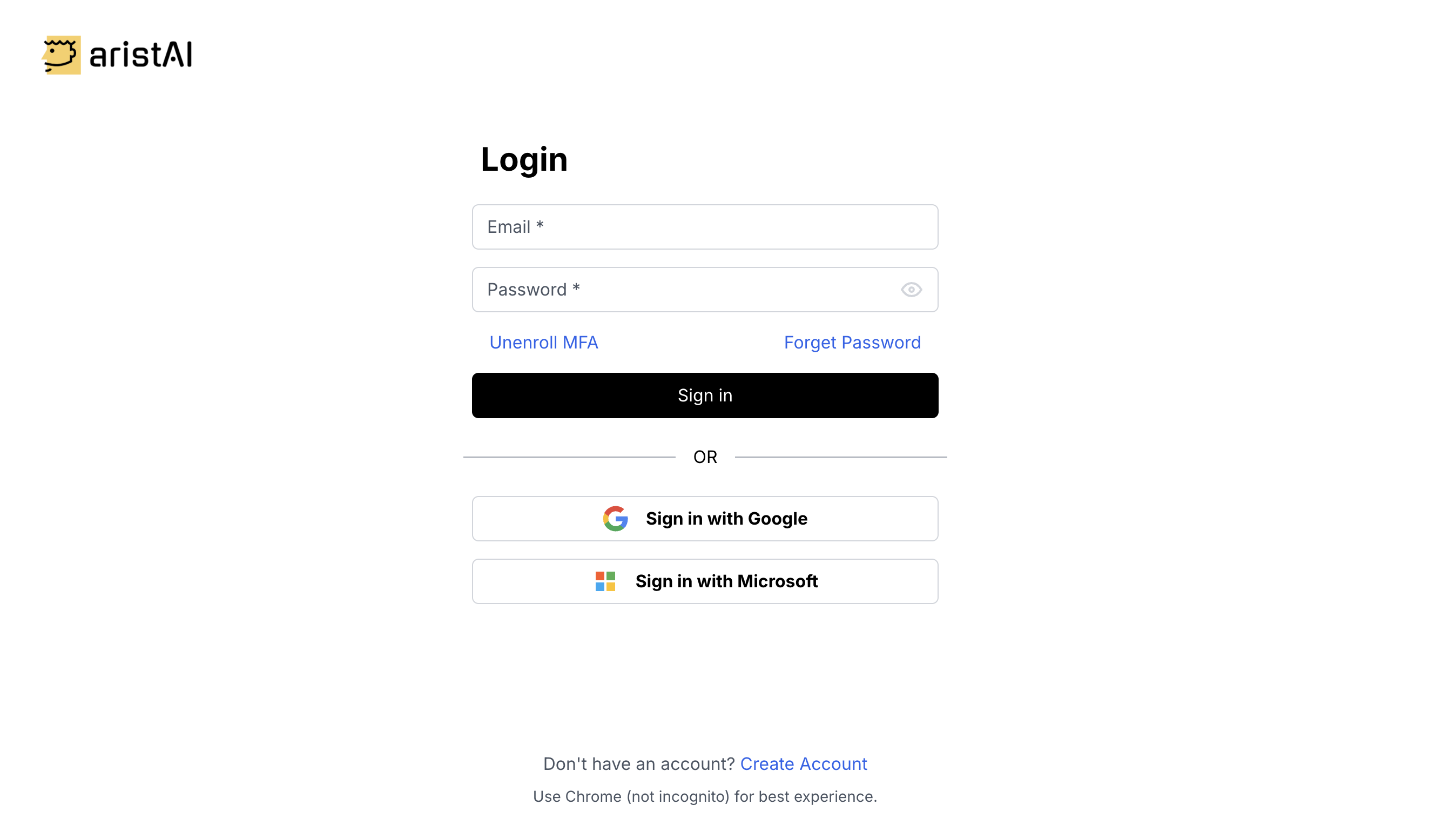
- Enter the same university email you registered with and your Password.
- Click Sign in.
Forgot Password
Click Forgot Password on the Log In page to receive a password reset email.
1.3 Verify Email (Required)
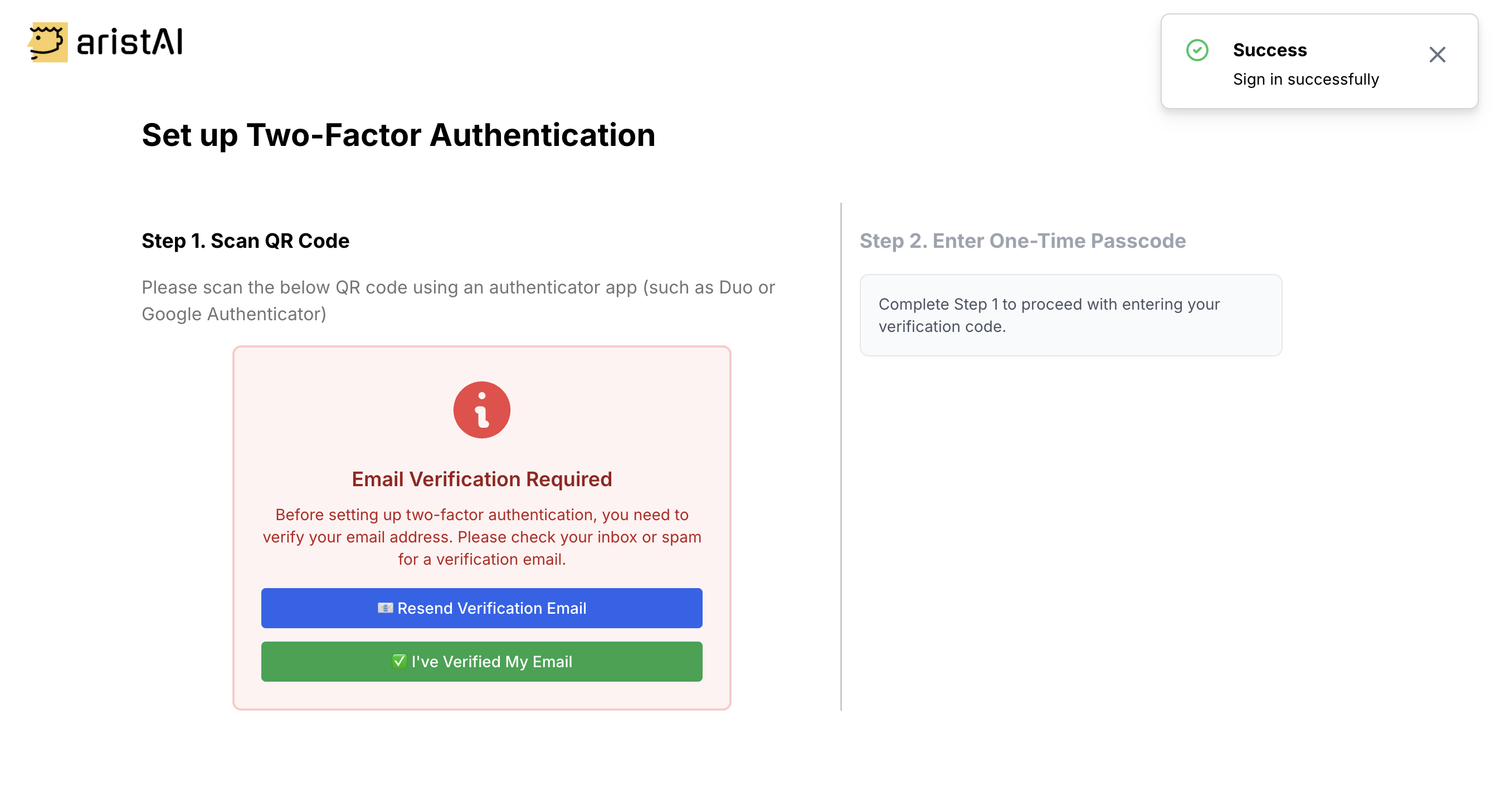
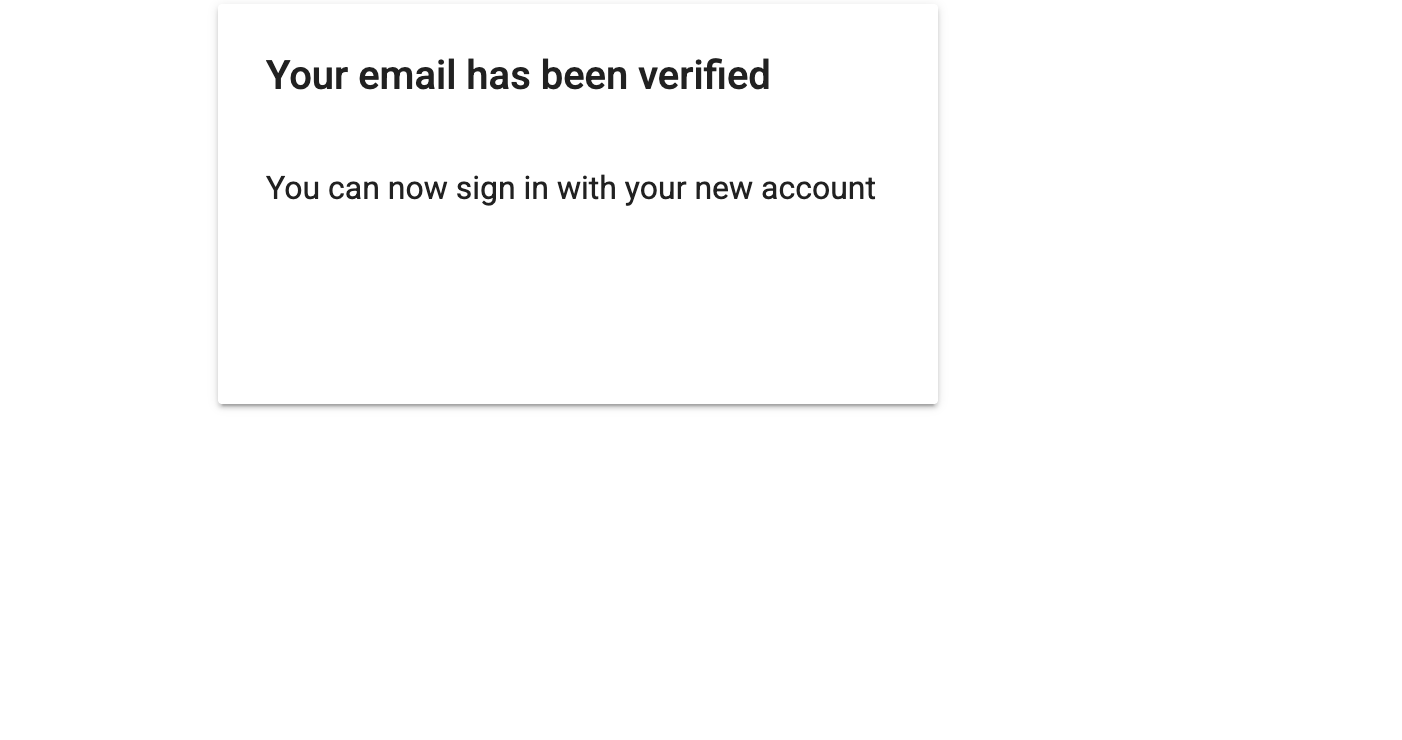
After registering (or on your next login), you must verify your email address. AristAI will send a verification link to your inbox (check spam/junk too). After clicking the verification link, you will see a success page.
1.4 Set up 2FA (Authenticator App)
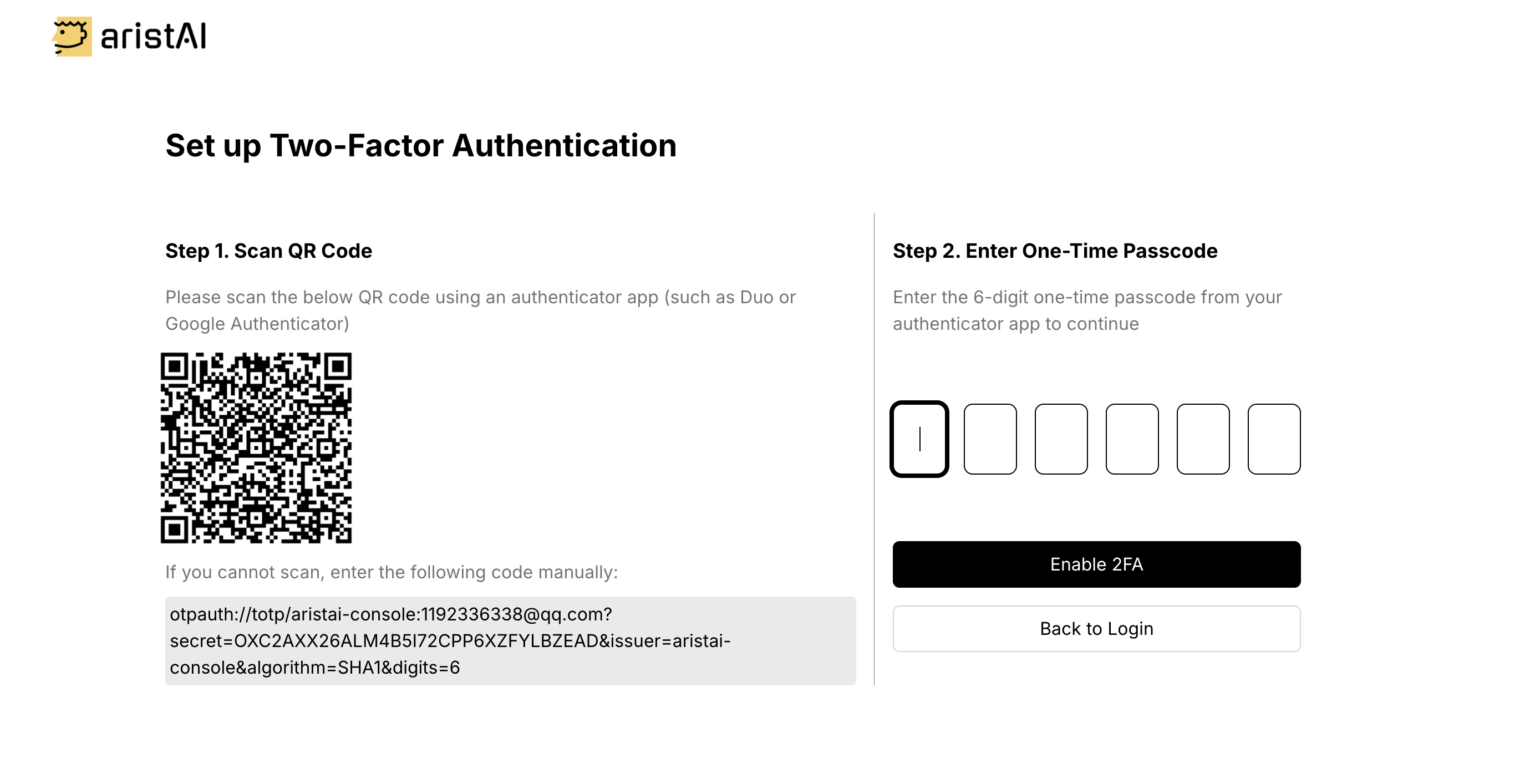
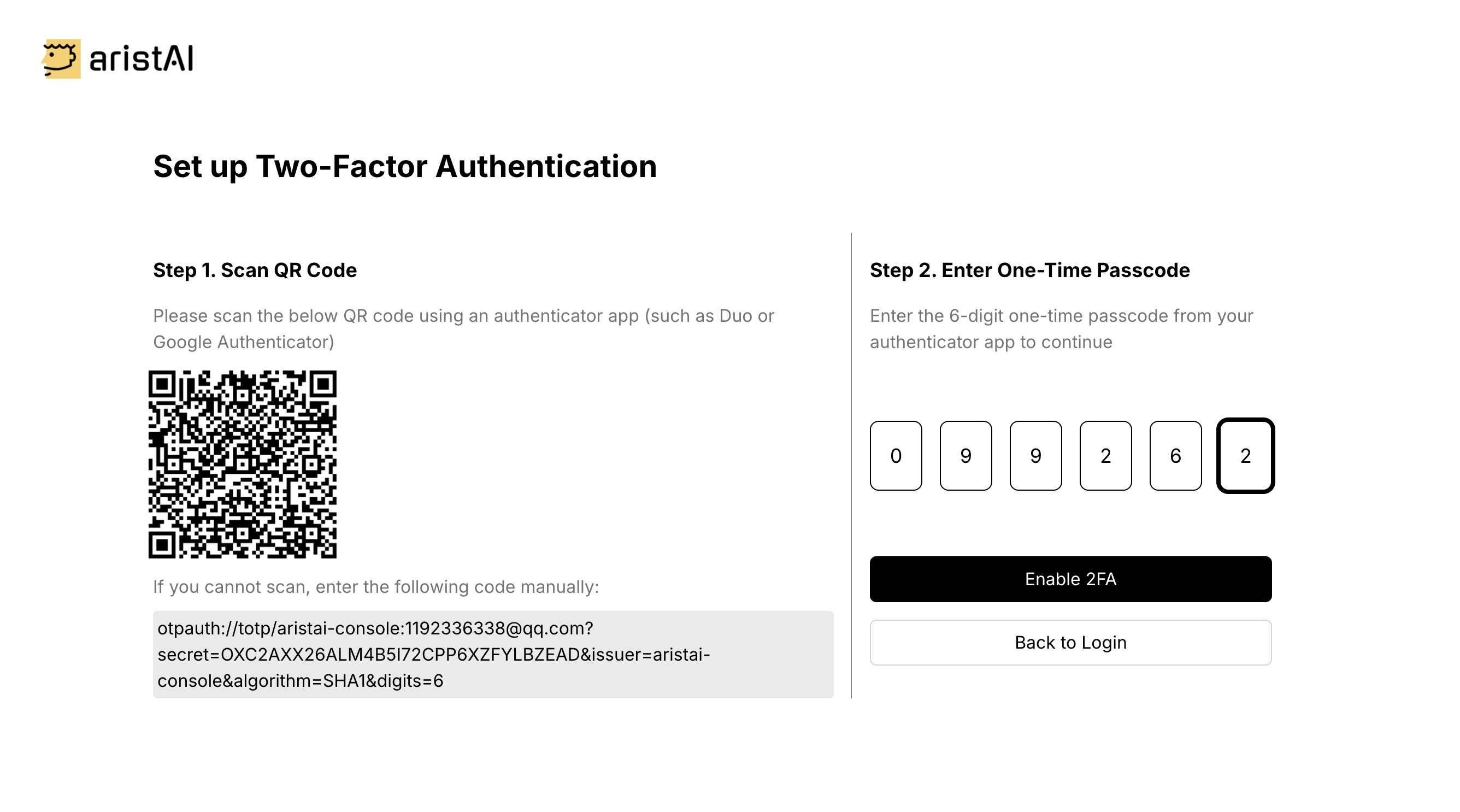
After email verification, you will be guided to set up Two-Factor Authentication (2FA). Use an authenticator app on your phone such as Duo, Google Authenticator, or Microsoft Authenticator (any TOTP-compatible app).
- Open your authenticator app and choose Add account.
- Scan the QR code shown on the screen.
- Enter the 6-digit one-time passcode from the app.
- Click Enable 2FA to finish.
1.5 Choose Your Role (Student)
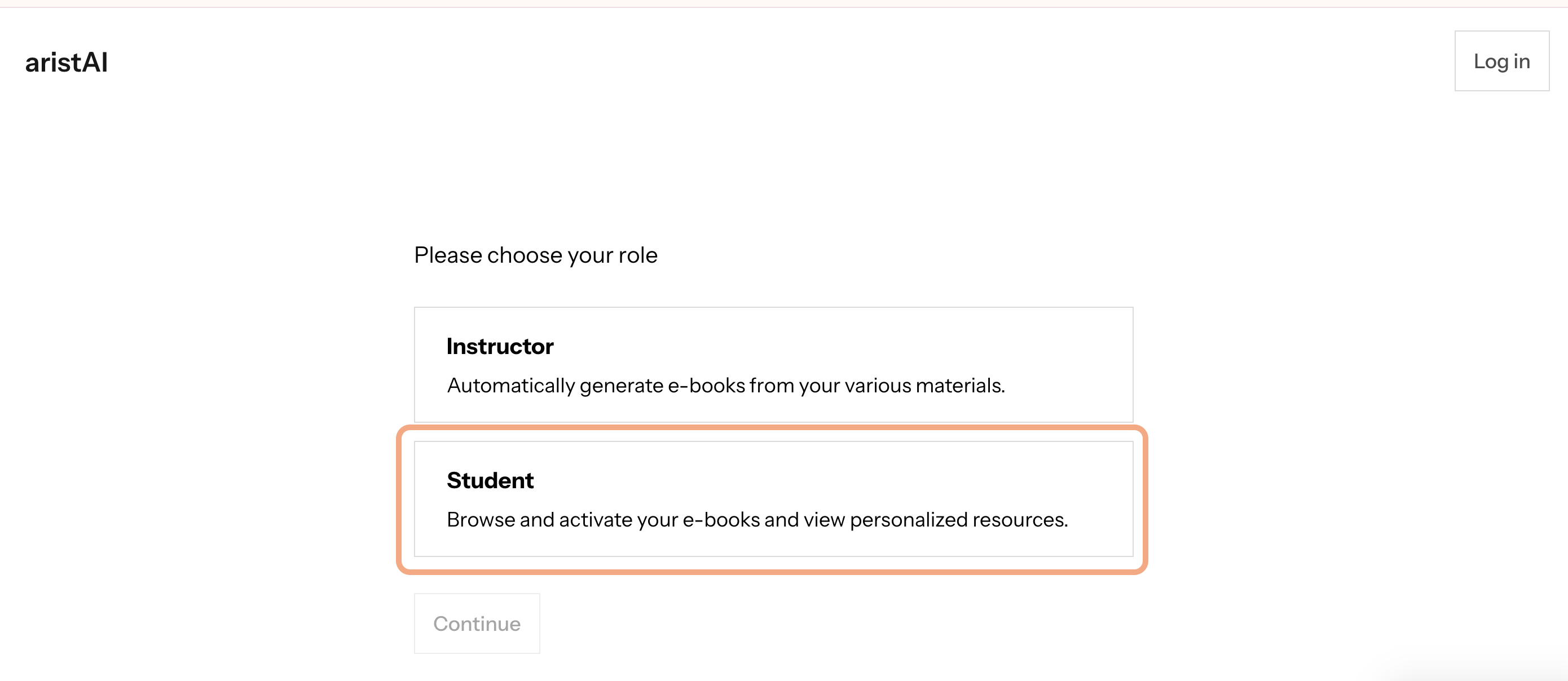
After successful sign-in, you will be asked to choose your role. Students should select Student.
2. Activate a Book (Code from School/Instructor)
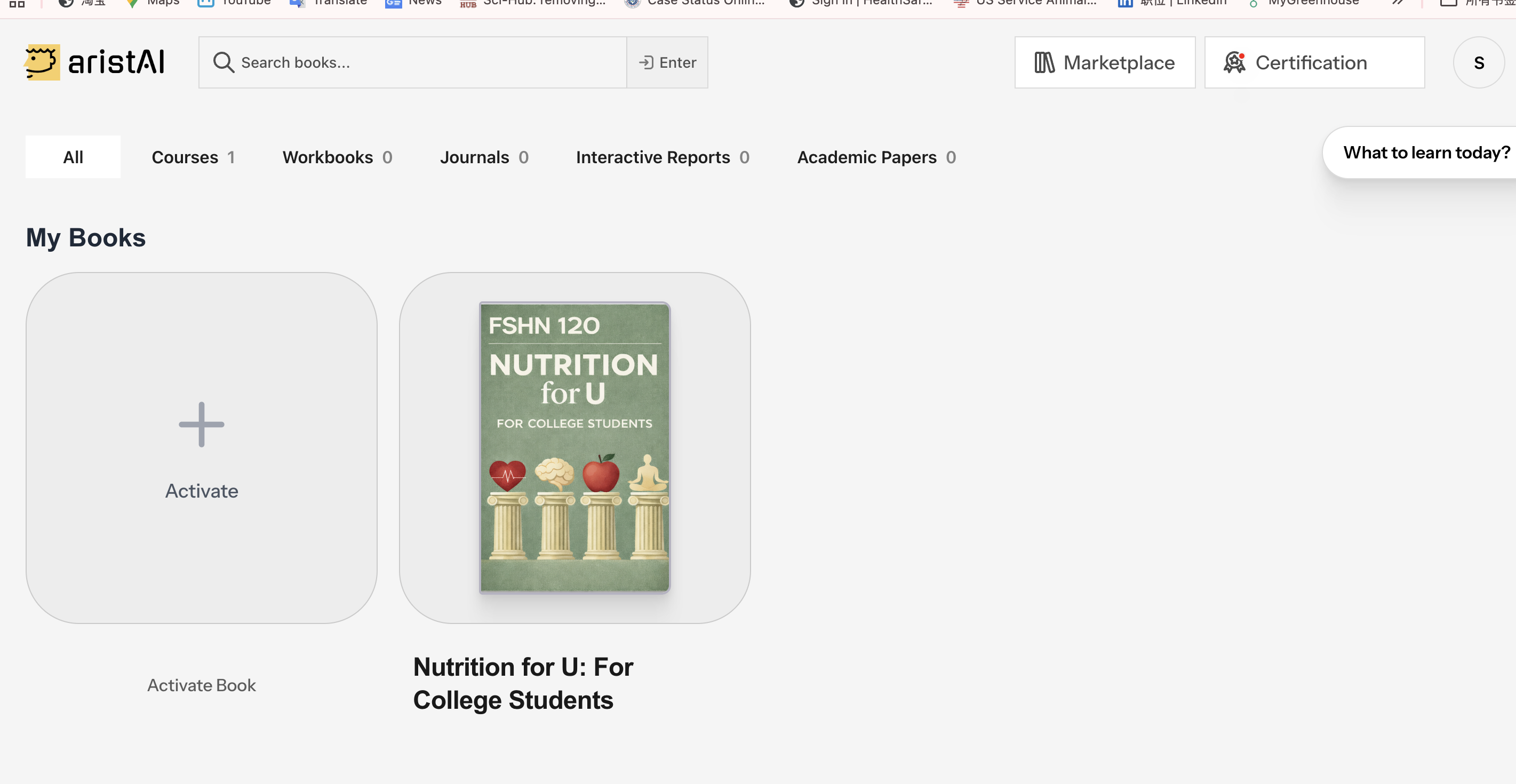
If your school or instructor gave you an 8-character activation code, you will activate your eBook from the My Books page.
2.1 Enter Your Activation Code
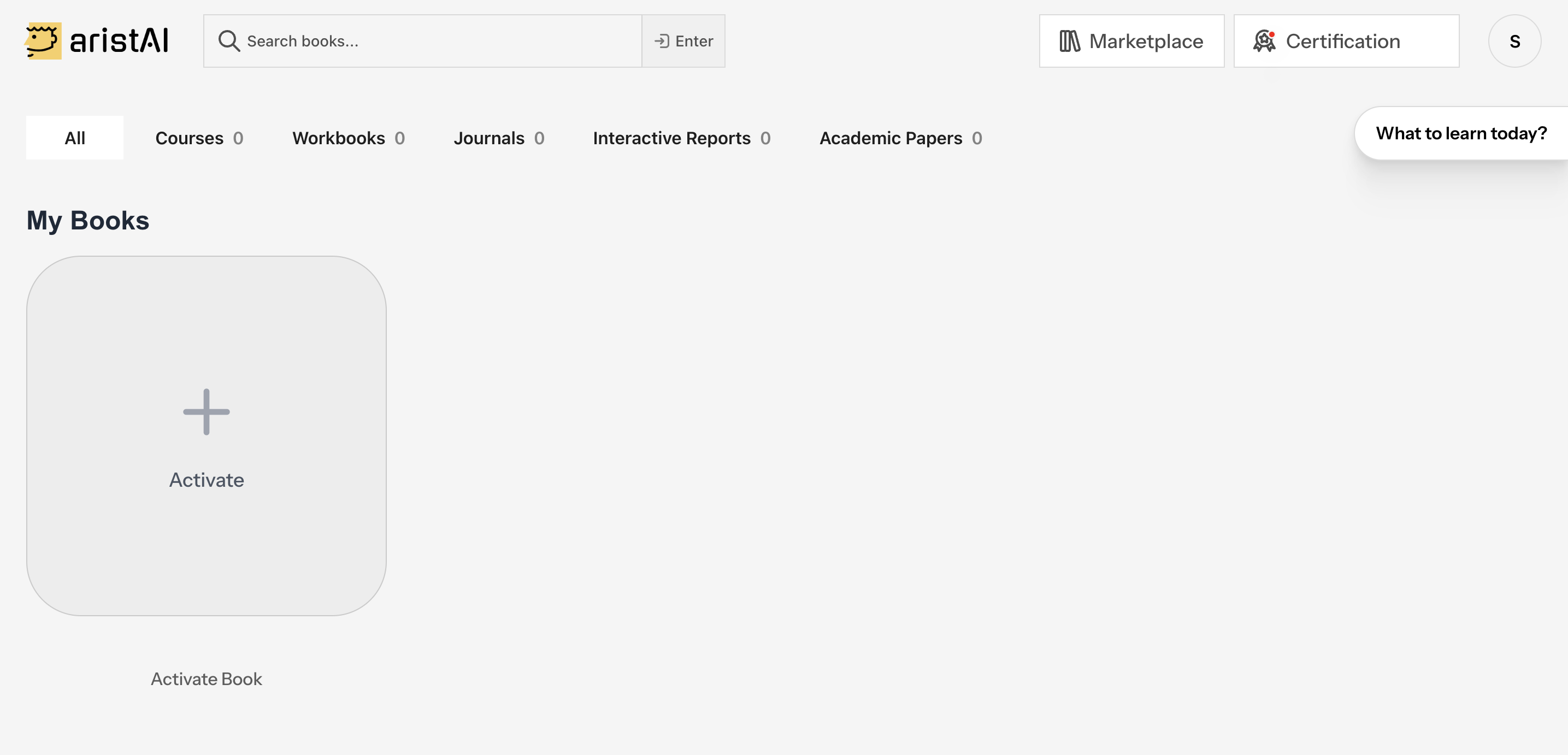
- After logging in, you will land on My Books.
- Click the Activate tile.
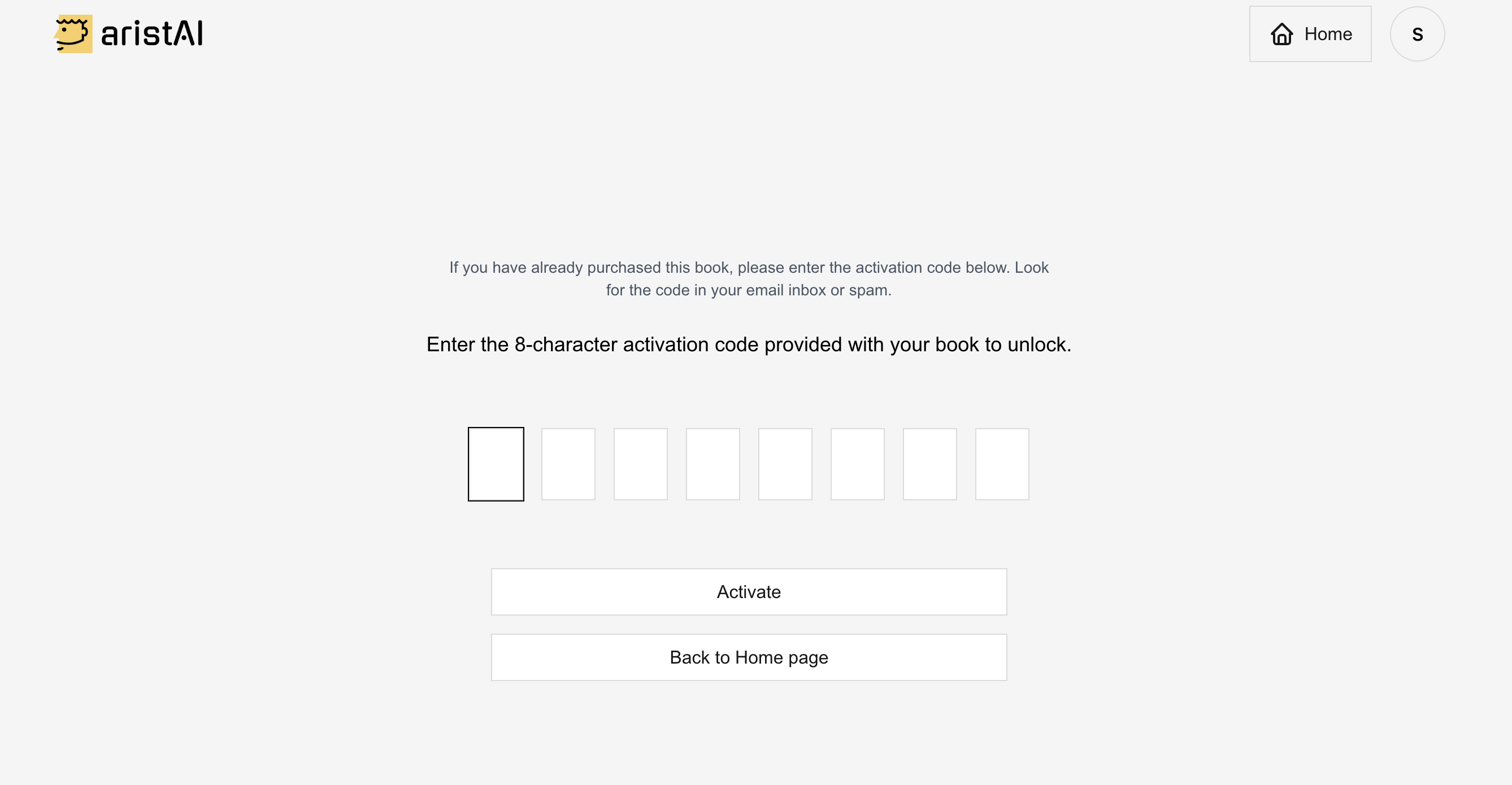
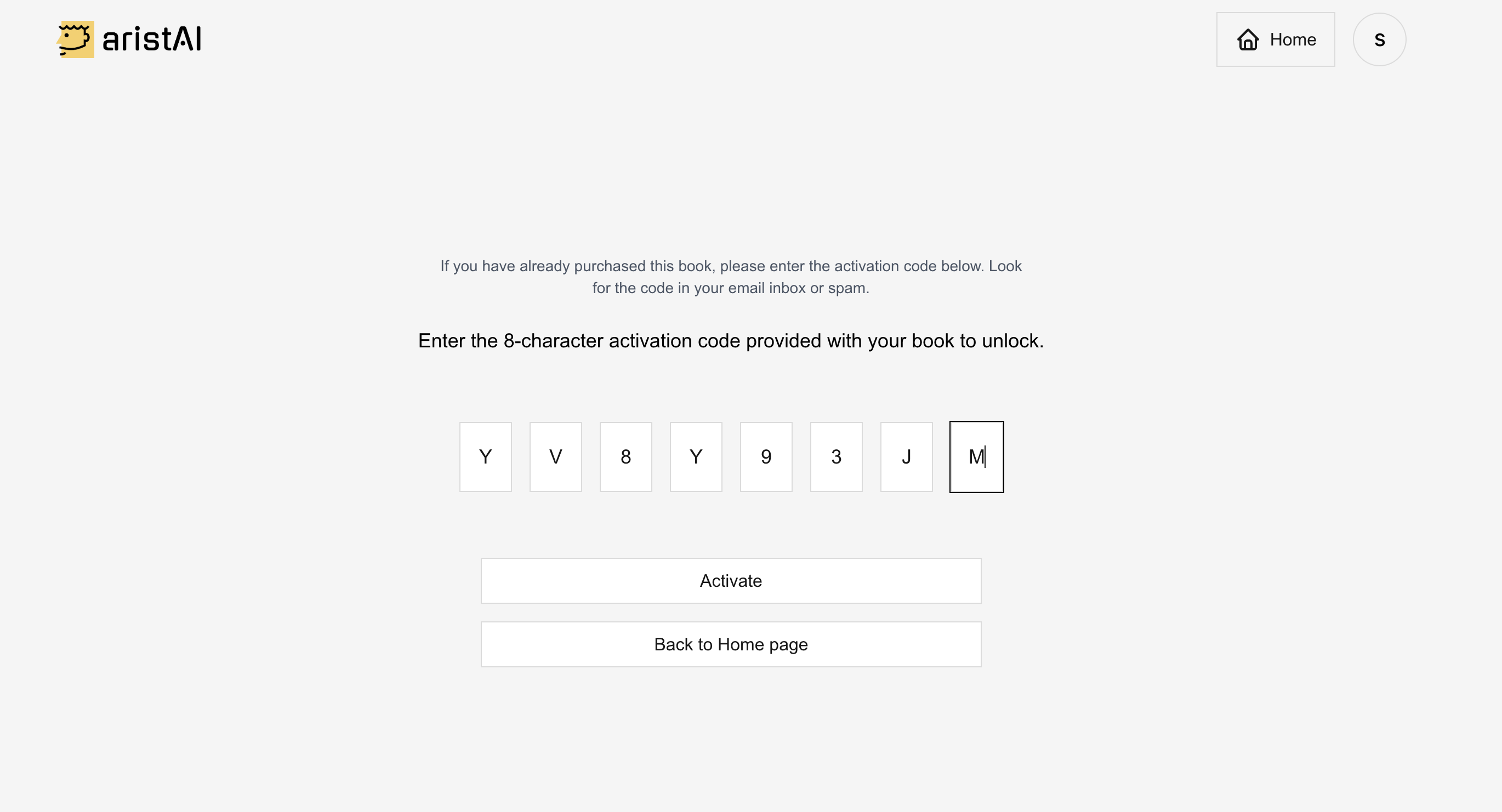
- Enter your 8-character code (letters and numbers).
- Click Activate.
2.2 Confirm the Book and Finish
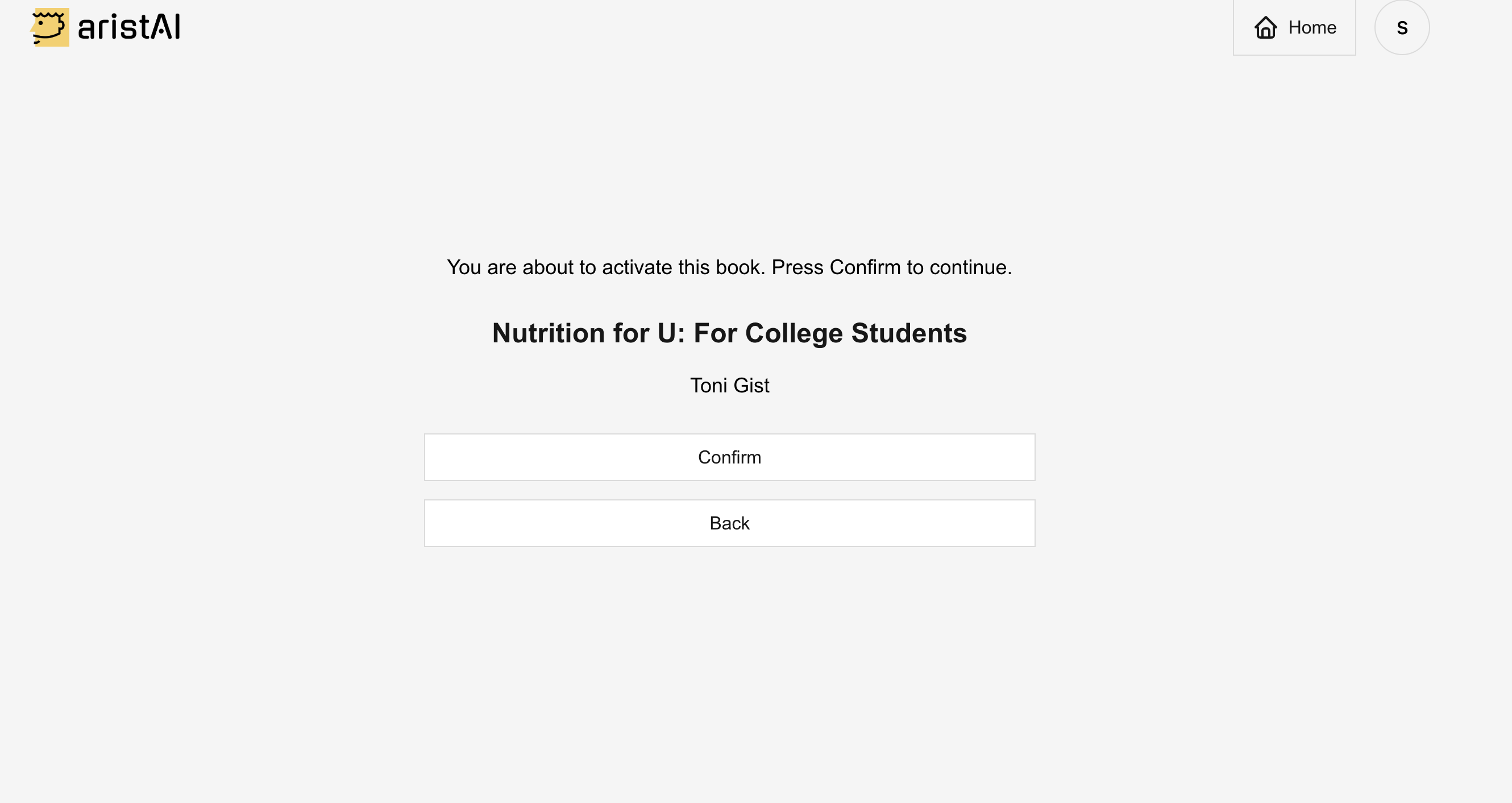
- On the confirmation screen, verify the book title and cover.
- Click Confirm.
- The book will appear in My Books.
3. Purchase a Code (Pay with Stripe)
If you do not have an activation code, you can purchase access through AristAI’s checkout (powered by Stripe).
3.1 Find the Correct Book (Avoid Buying the Wrong One)
- Course code (e.g., FSHN 120)
- Full book title
- Instructor/author name (if shown)
- Cover image matches what your instructor provided
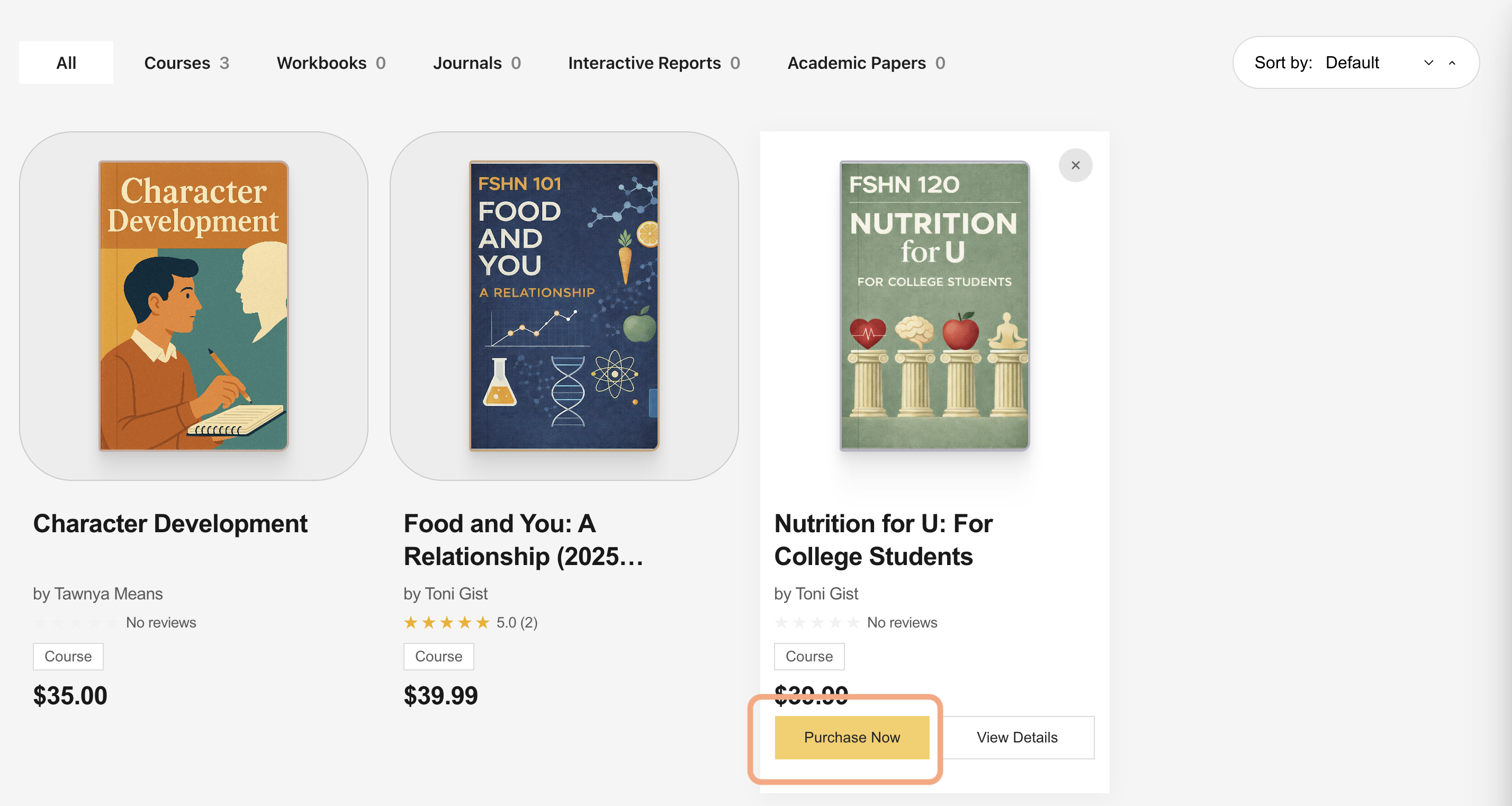
Purchase entry points you may see
- Click Marketplace (top navigation) and find your book.
- Click Purchase Now (or view details, then purchase).
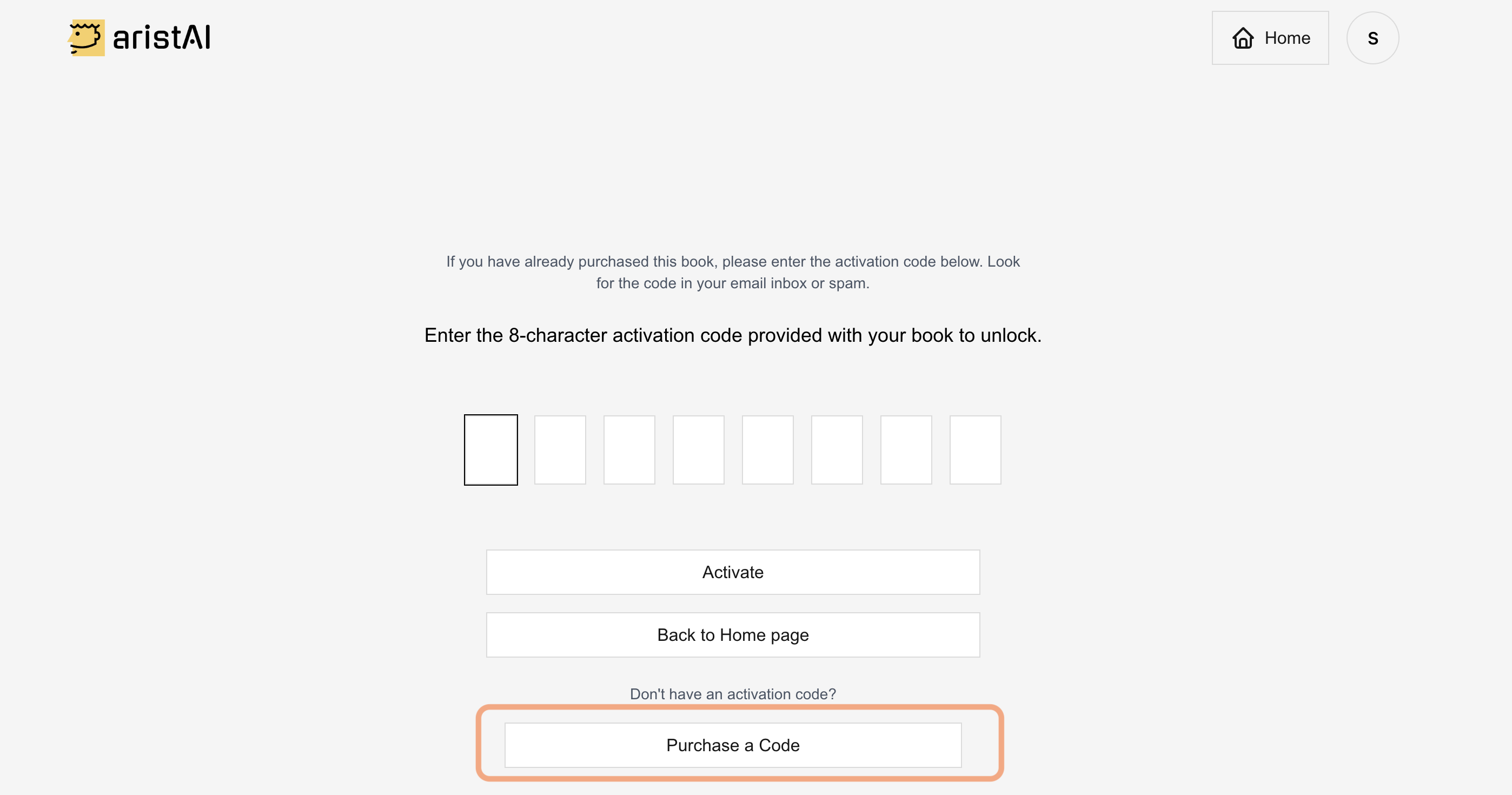
- If you’re on the activation page and don’t have a code, click Purchase a Code.
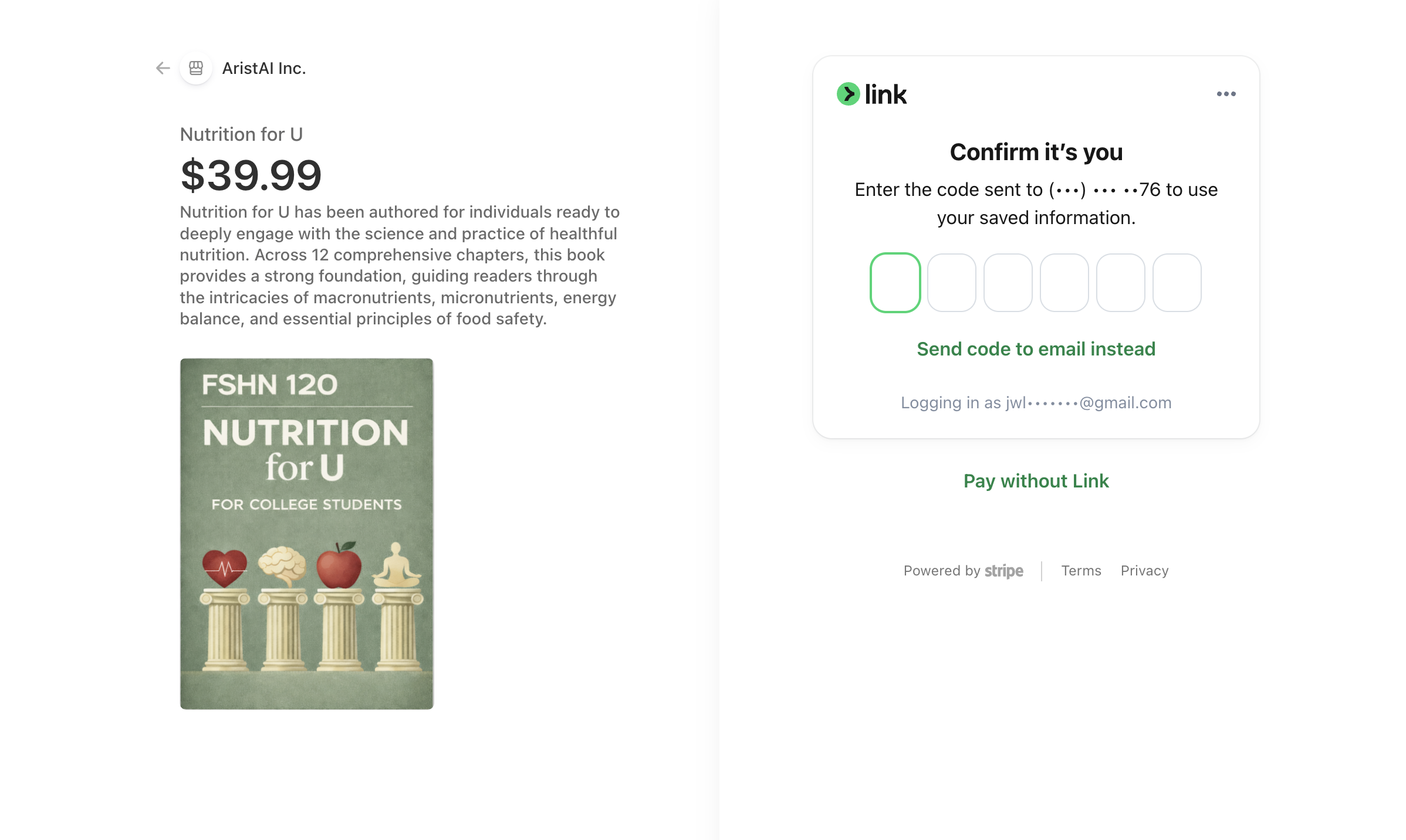
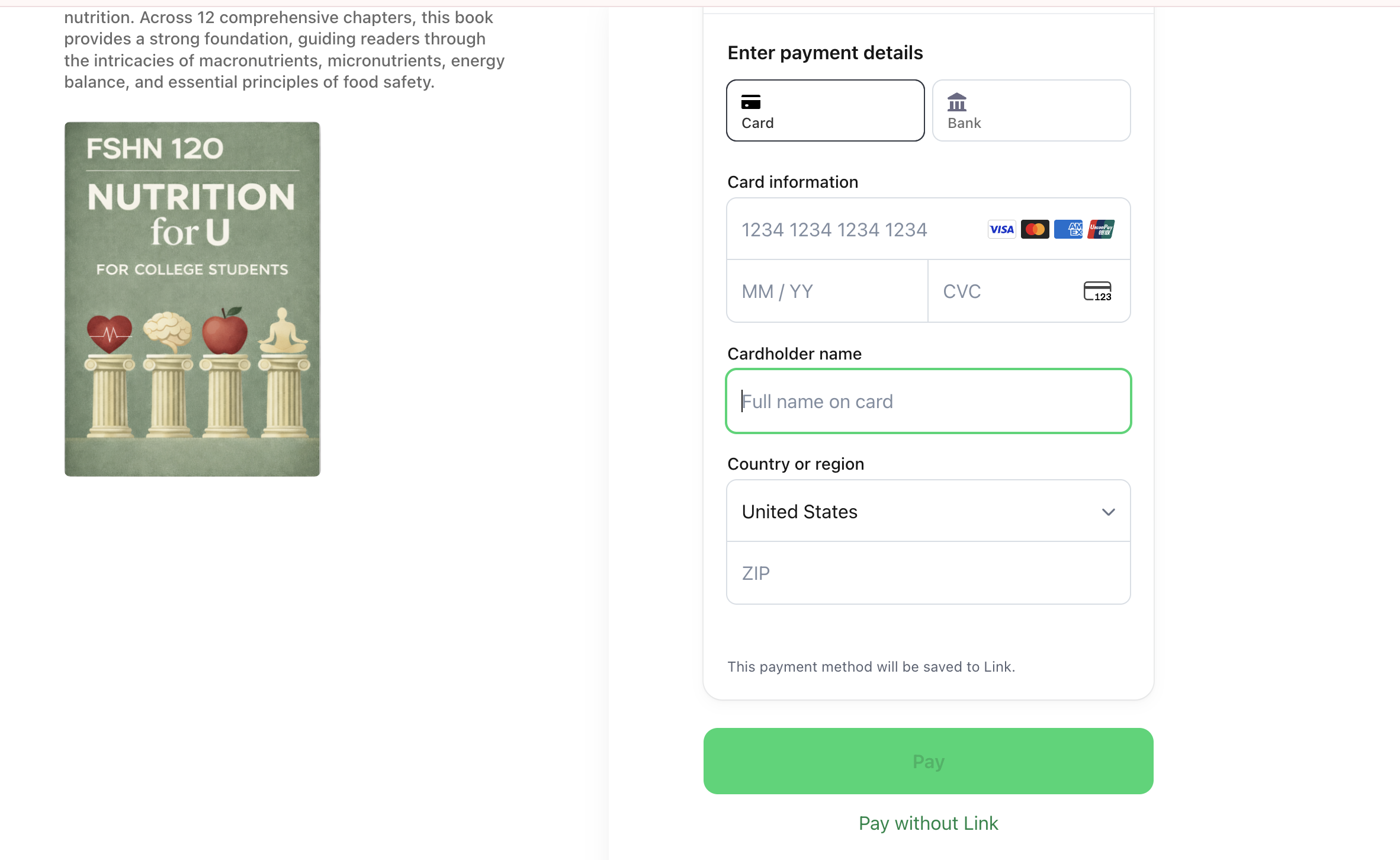
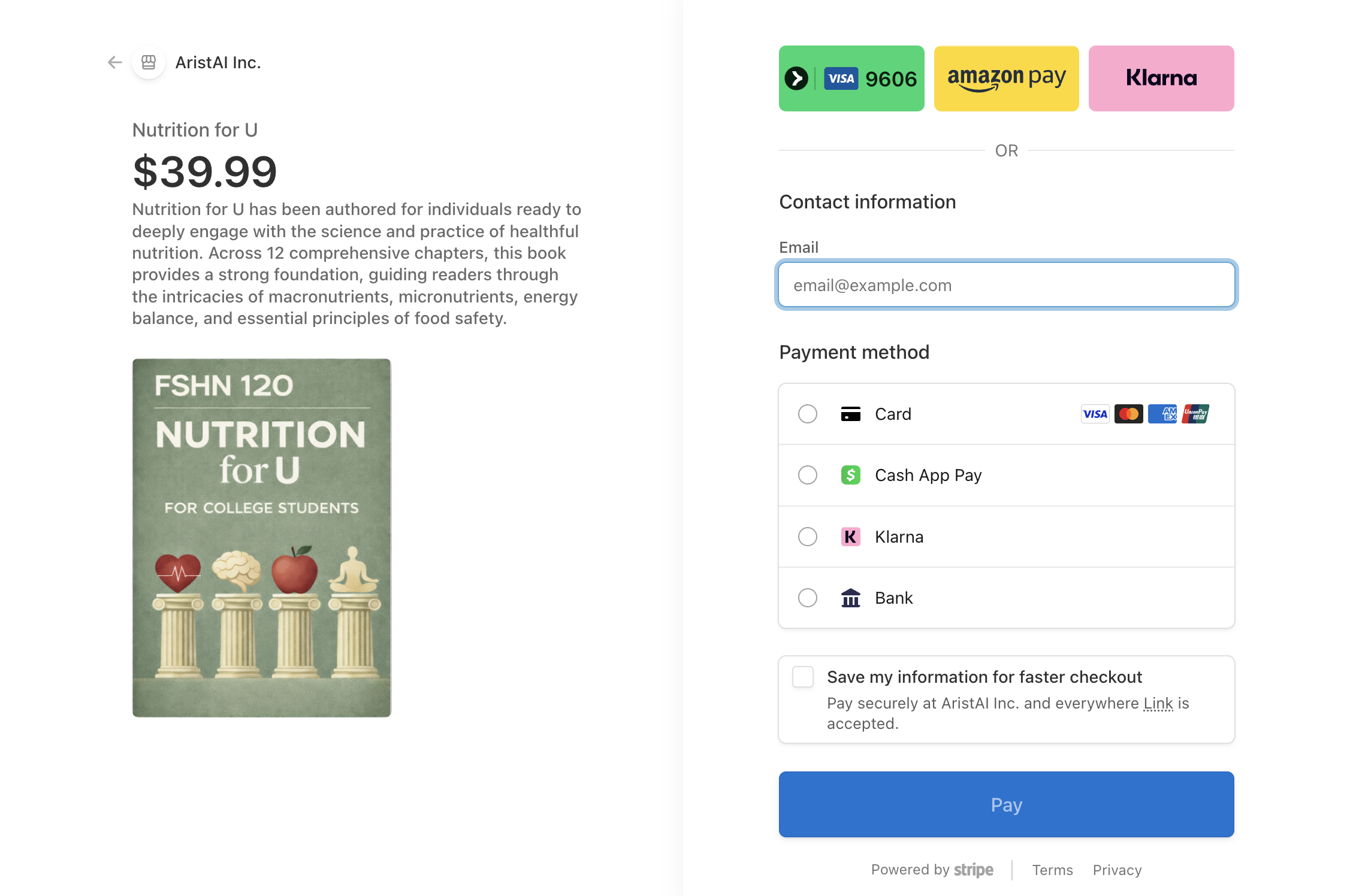
3.2 Checkout Options (Stripe)
Checkout is powered by Stripe. You may see a verification step called Link (e.g., a code sent to your phone/email). You can also choose Pay without Link.
4. Read & Study
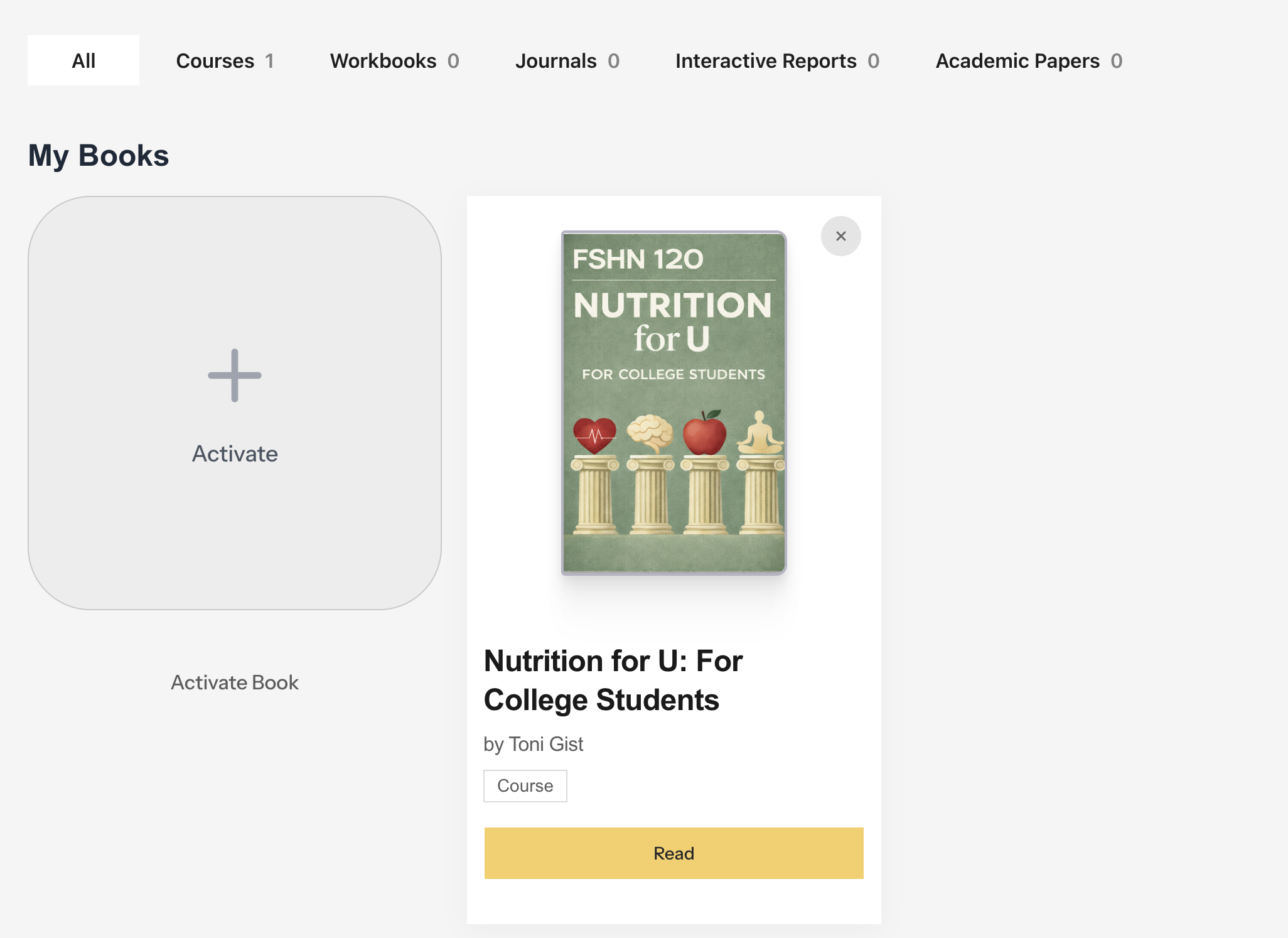
4.1 Open Your Book
- Go to My Books.
- Find your course book.
- Click Read.
4.2 Chapter Learning Toolkit (Expand)
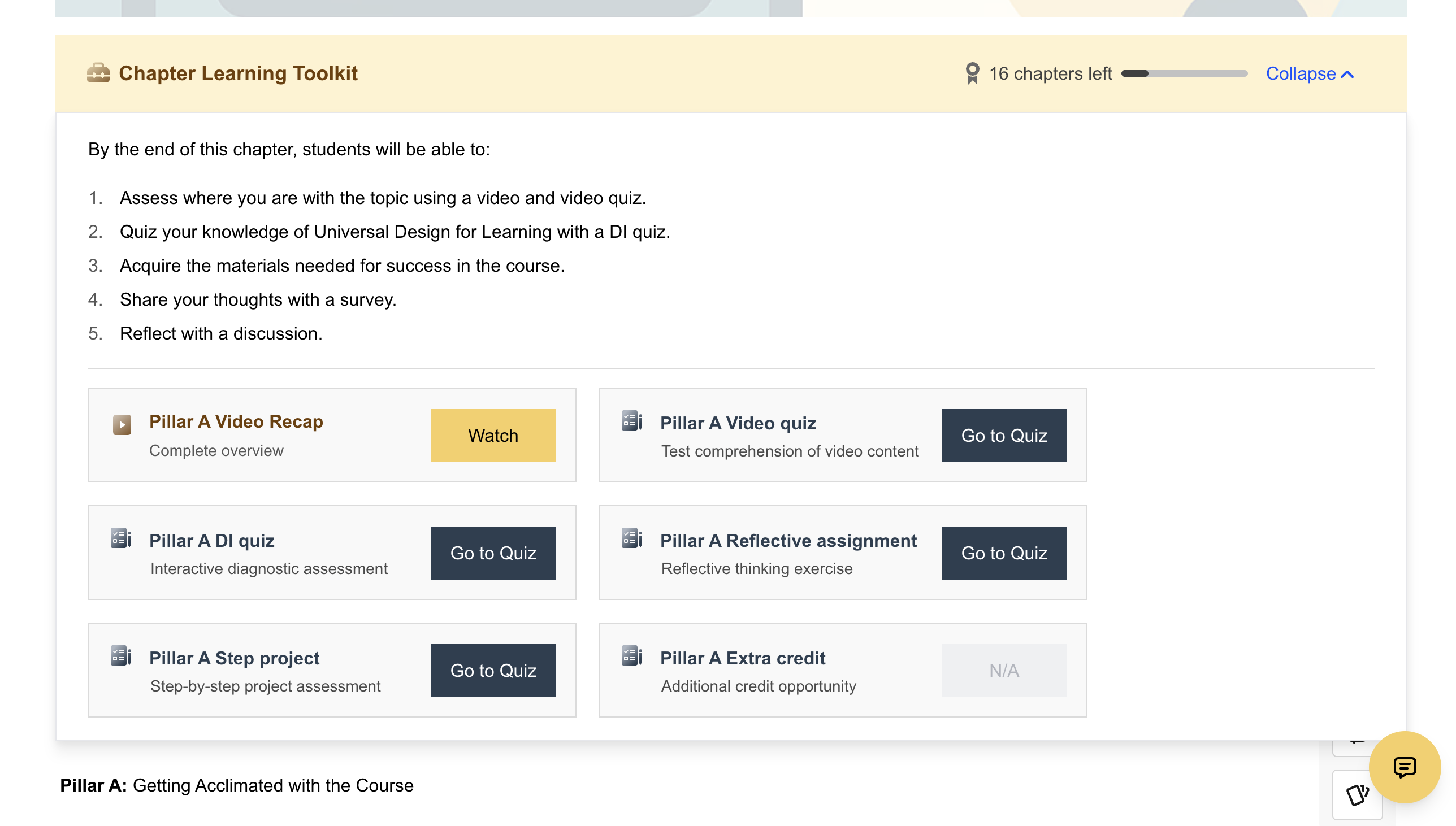
Inside the book, you can expand the Chapter Learning Toolkit to see learning objectives and activities (videos, quizzes, assignments). You may also see a progress indicator (e.g., “chapters left”).
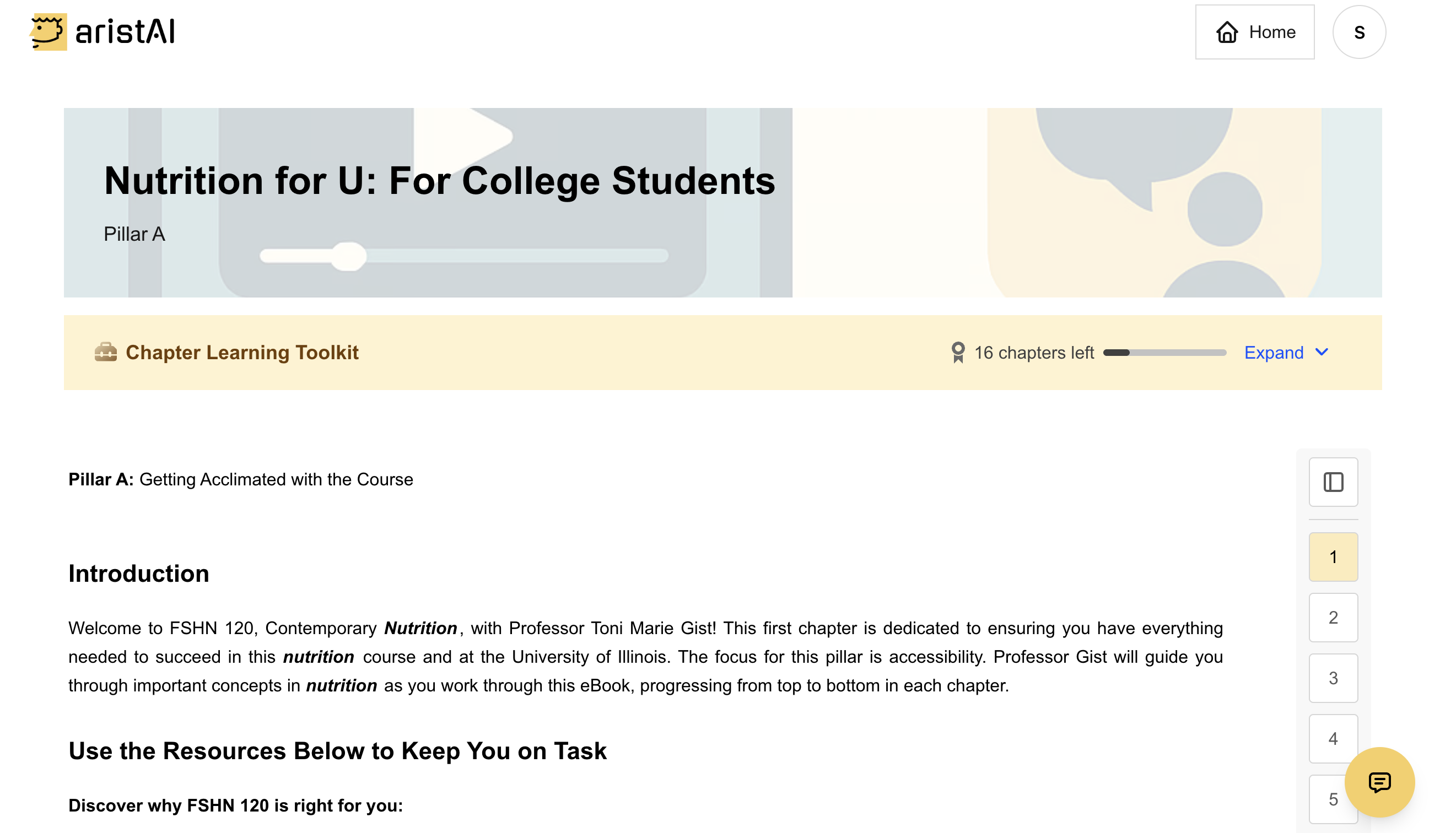
4.3 Chapter Navigation
Use the right-side chapter navigation to jump between chapters quickly.
4.4 Highlights, Notes, and Term Flashcards
While reading, you can highlight text and add notes. You can also review term flashcards for key vocabulary. These tools help you study and prepare for quizzes.
5. FAQ & Troubleshooting
5.1 Account & Login Issues
| Issue | What to do |
|---|---|
| I can’t create an account with my email | Each email can only be used once. If you already signed up, use Log In. If you forgot your password, use Forgot Password. |
| I didn’t receive the verification email | Check spam/junk. On the verification screen, click Resend Verification Email. Make sure you typed your email correctly. |
| I lost my authenticator / can’t pass 2FA |
First, try to complete the normal 2FA setup/verification using your authenticator app (Duo / Google Authenticator / Microsoft Authenticator).
If you are still blocked (for example, you changed phones and no longer have access to your authenticator), please contact support for assistance. |
| I entered my activation code but it doesn’t work | Double-check for typos (0 vs O, 1 vs I). If it still fails, contact your instructor/school (code provider) or support. |
| I might have purchased the wrong book | Before purchasing, confirm course code, title, and cover image. If you already purchased, contact support with your checkout email (may be different from your AristAI account email) and details. |
5.2 Two-Factor Authentication (2FA) Issues
| Issue | What to do |
|---|---|
| I scanned the QR code but no 6-digit code appears | Use an authenticator app (not your phone's camera): Duo Mobile, Google Authenticator, or Microsoft Authenticator. Open the app → tap "+" → select "Scan QR code". |
| I lost my authenticator / changed phones | Contact support@aristai.io with your account email. We can reset your 2FA so you can set it up again. |
| My 2FA code is always invalid | The code changes every 30 seconds. Make sure your phone's time is set automatically and you're using the code for aristai-console. |
5.3 Activation Code Issues
| Issue | What to do |
|---|---|
| I don't have an activation code | If your school provides codes: Check your syllabus, Canvas, or email from your instructor. If you need to purchase: Go to Marketplace and click Purchase Now. |
| Activation failed / Code doesn't work | Double-check for typos: 0 vs O, 1 vs I, 8 vs B. Each code works once. Contact your instructor or support if it still fails. |
5.4 Purchase & Payment Issues
| Issue | What to do |
|---|---|
| I paid but my book doesn't appear | Wait 1-2 minutes and refresh. Make sure you're logged in with the same email used during checkout. Check My Books. Contact support with your payment confirmation if still missing. |
| I purchased the wrong book | Contact support@aristai.io with your account email, payment email, and which book you need. |
5.5 Reading & Content Issues
| Issue | What to do |
|---|---|
| The page won't load / keeps spinning | Use Google Chrome (not Safari). Try an Incognito/Private window. Clear your browser cache. |
| "Choose your role" page won't load | Close all tabs, open a new Chrome Incognito window, and go to ebook.aristai.io. |
| Yellow text box on writing activities | This is NOT an error! The yellow box is feedback for open-ended questions. You do NOT need to retry — once you submit, you're done! |
5.6 Browser Recommendations
- Recommended: Google Chrome (latest version)
- Also works: Microsoft Edge, Firefox
- Not recommended: Safari (may have issues)
- Tip: Try an Incognito/Private window if you experience issues
6. Support
If you still need help, contact support and include: your account email (your university email), course name, and a screenshot of the issue.
| Support Email | support@aristai.io |
| Course questions | Contact your instructor (assignments, due dates, and course-specific content). |
| Activation code issues | First contact the code provider (school/instructor). If needed, also contact support. |